This guide configures Okta Platform Single Sign-On for macOS with the password method (Desktop Password Sync) and Simplified Setup. Simplified Setup, introduced in macOS 26, requires users to register with Okta in Setup Assistant during Automated Device Enrollment and creates the first local account from the Okta identity.
Use this workflow for:
- 1:1 Mac deployments
- Zero-touch provisioning where the first account belongs to the IdP user
- Enforcing Okta sign-in before the user reaches the desktop
For Secure Enclave key authentication with Okta, enable Device-Bound SSO and the Secure Enclave feature in your Okta org, and see Configure Platform SSO with a Secure Enclave key (Okta).
Requirements
- Okta Identity Engine with an Okta Device Access license
- Mac with Apple silicon and macOS 26 or later for Simplified Setup (macOS 14 or later for registration after setup)
- Jamf Pro 11.20 or later
- Okta Verify 9.52 or later, deployed from the Jamf App Catalog or as a package. The App Store version of Okta Verify does not support Device Access.
- Okta super administrator access
Step 1: Create the Platform SSO App in Okta
- Sign in to your Okta org as a super administrator.
- Go to Applications > Applications > Browse App Catalog, and search for
Platform Single Sign-on for macOS. - Click Add Integration. Optionally, change the app label on the General tab.
- On the Sign On tab, copy the Client ID. You need it for the Okta Verify app configuration.
- On the Assignments tab, assign the app to the users or groups that use Desktop Password Sync.
Step 2: Map Account Attributes
By default, Okta uses the Okta username as the macOS account name and the first and last name as the display name. Complete this step to use a different format.
- Go to Directory > Profile Editor, and open Platform Single Sign-On for macOS User.
- Add two attributes, and mark each as required:
macOSAccountUsernamemacOSAccountFullName
- Return to the Platform Single Sign-On for macOS app. On the Authentication tab, click Configure profile mapping.
- Select the Okta User to Platform Single Sign-On for macOS tab, and map:
user.logintomacOSAccountUsernameuser.displayNametomacOSAccountFullName
- Click Preview to confirm the values, and then click Save Mappings.
The macOSAccountUsername value becomes the short name of the local account. Choose a mapping that produces a valid macOS short name for every user.
Step 3: Configure Okta as a SCEP Certificate Authority
Platform SSO requires only the Okta Device Access SCEP certificate. The Okta endpoint management certificate supports Okta device assurance policies for managed devices. Many organizations deploy both, but Platform SSO does not need the second one.
- In the Okta Admin Console, go to Security > Device Integrations, and select the Device Access tab.
- Click Add SCEP configuration.
- Select Dynamic SCEP URL, choose Generic as the challenge type, and click Generate.
- Copy the SCEP URL, Challenge URL, Username, and Password.
- Click Save.
Step 4: Create the SCEP Configuration Profile in Jamf Pro
- In Jamf Pro, go to Computers > Configuration Profiles, and click New.
- Enter a name, description, and category. Set Level to
Computer Leveland Distribution Method toInstall Automatically. - Select the SCEP payload, and click Configure.
- Configure the following settings:
| Setting | Value |
|---|---|
| URL | The SCEP URL from Okta |
| Name | A name for the certificate authority, such as CA-OKTA |
| Redistribute Profile | Your renewal interval, such as 14 days |
| Subject | CN=$SERIALNUMBER ODA |
| Challenge Type | Dynamic-Microsoft CA |
| URL To SCEP Admin | The Challenge URL from Okta |
| Username | The username from Okta |
| Password | The password from Okta |
| Key Size | 2048 |
| Use as digital signature | Selected |
| Allow export from keychain | Not selected |
| Allow all apps access | Selected |
- Scope the profile, and click Save.
Do not add $PROFILE_IDENTIFIER to the subject. Jamf Pro appends it automatically when it redistributes the profile, and the subject has a 64-character limit.
Step 5: Create the Platform SSO Configuration Profile in Jamf Pro
- Go to Computers > Configuration Profiles, and click New.
- Enter a name, description, and category. Set Level to
Computer Leveland Distribution Method toInstall Automatically.
Associated Domains Payload
Add two app identifiers. Leave Enable Direct Downloads unselected.
| App Identifier | Associated Domain |
|---|---|
B7F62B65BN.com.okta.mobile |
authsrv:<your-org>.okta.com |
B7F62B65BN.com.okta.mobile.auth-service-extension |
authsrv:<your-org>.okta.com |
Single Sign-On Extensions Payload
| Setting | Value |
|---|---|
| Payload Type | SSO |
| Extension Identifier | com.okta.mobile.auth-service-extension |
| Team Identifier | B7F62B65BN |
| Sign-on Type | Redirect |
| URLs | https://<your-org>.okta.com/device-access/api/v1/noncehttps://<your-org>.okta.com/oauth2/v1/tokenhttps://<your-org>.okta.com/v1/auth/device-sign |
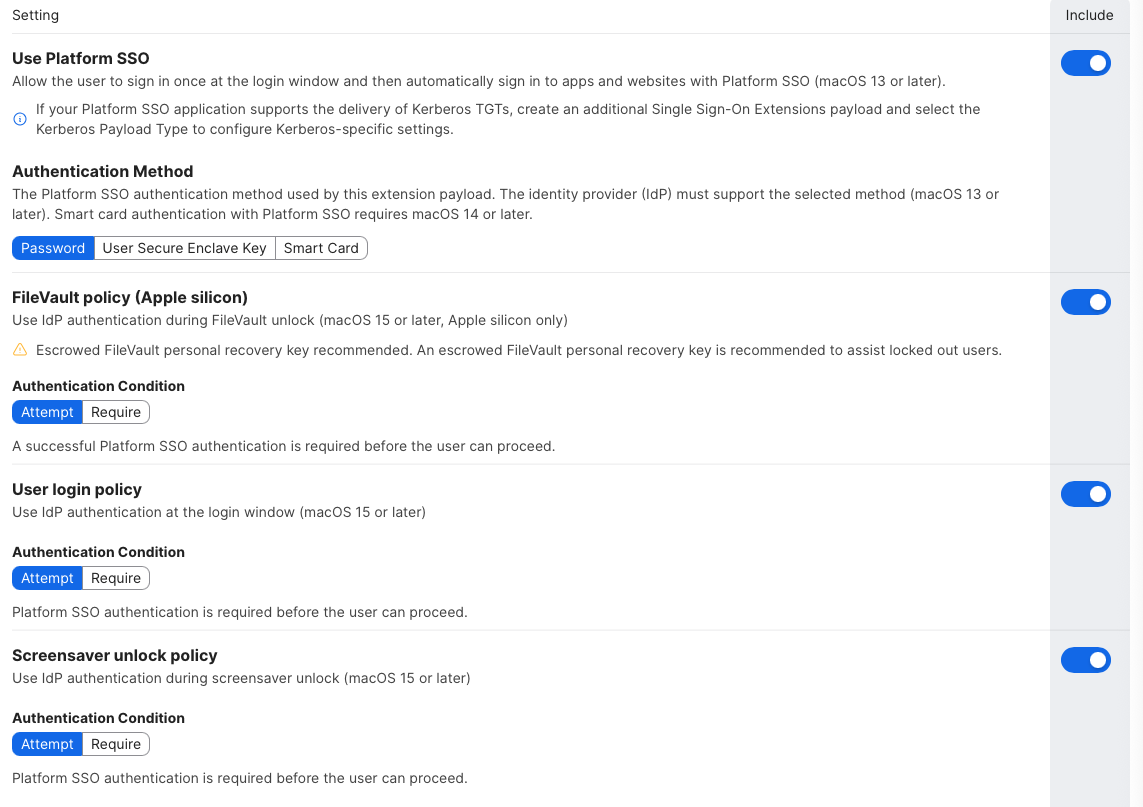
| Use Platform SSO | Included |
| Authentication Method | Password |
| Registration Token | Included, with any value (the SCEP profile overrides it) |
| Use Shared Device Keys | Enabled |
| FileVault Policy (Apple silicon) | Attempt Authentication |
| User Login Policy | Attempt Authentication |
| Screensaver Unlock Policy | Attempt Authentication |
| Enable Registration During Setup | Enabled |
| Create First User During Setup | Enabled |
| New User Authentication Method | Password |
| Account Display Name | Your organization name, such as Company IT |
Application and Custom Settings Payload
Upload the following property lists. Replace the placeholder values with your own.
Preference domain: com.okta.mobile.auth-service-extension
<?xml version="1.0" encoding="UTF-8"?>
<!DOCTYPE plist PUBLIC "-//Apple//DTD PLIST 1.0//EN" "http://www.apple.com/DTDs/PropertyList-1.0.dtd">
<plist version="1.0">
<dict>
  <key>OktaVerify.OrgUrl</key>
  <string>https://your-org.okta.com</string>
  <key>OktaVerify.UserPrincipalName</key>
  <string>$USERNAME</string>
  <key>OktaVerify.PasswordSyncClientID</key>
  <string>your-psso-app-client-id</string>
  <key>PlatformSSO.ProtocolVersion</key>
  <string>2.0</string>
</dict>
</plist>
Preference domain: com.okta.mobile
<?xml version="1.0" encoding="UTF-8"?>
<!DOCTYPE plist PUBLIC "-//Apple//DTD PLIST 1.0//EN" "http://www.apple.com/DTDs/PropertyList-1.0.dtd">
<plist version="1.0">
<dict>
  <key>OktaVerify.OrgUrl</key>
  <string>https://your-org.okta.com</string>
  <key>OktaVerify.UserPrincipalName</key>
  <string>$USERNAME</string>
  <key>PlatformSSO.ProtocolVersion</key>
  <string>2.0</string>
</dict>
</plist>
Preference domain: com.okta.deviceaccess.servicedaemon (optional)
Add this domain only if you plan to enable Okta Device-Bound Single Sign-On.
<?xml version="1.0" encoding="UTF-8"?>
<!DOCTYPE plist PUBLIC "-//Apple//DTD PLIST 1.0//EN" "http://www.apple.com/DTDs/PropertyList-1.0.dtd">
<plist version="1.0">
<dict>
  <key>OktaJoinEnabled</key>
  <true/>
</dict>
</plist>
Preference domain: com.apple.preference.security (optional)
This setting prevents users from changing the local account password, so users change their password in Okta.
<?xml version="1.0" encoding="UTF-8"?>
<!DOCTYPE plist PUBLIC "-//Apple//DTD PLIST 1.0//EN" "http://www.apple.com/DTDs/PropertyList-1.0.dtd">
<plist version="1.0">
<dict>
  <key>dontAllowPasswordResetUI</key>
  <true/>
</dict>
</plist>
- Scope the profile, and click Save.
Step 6: Create the PreStage Enrollment in Jamf Pro
- Go to Computers > PreStage Enrollments, and click New.
- Configure the General settings for your organization.
- Under Enrollment Requirements, select Enable Simplified Setup for Platform Single Sign-on (macOS 26 or later), and set Set workflow method to
Device first. - Set Minimum required macOS version to
26.0or later. - Set Platform Single Sign-on App Bundle ID to
com.okta.mobile. - In Configuration Profiles, include the Platform SSO profile and the SCEP profile.
- In Enrollment Packages, include the Okta Verify package (9.52 or later).
- Click Save.
These steps use the device first workflow method, which supports the dynamic SCEP challenge from Step 3. Jamf Pro 11.29 or later also offers identity first, which installs the Platform SSO profile before enrollment but does not support dynamic SCEP challenges. See Simplified Setup: Identity First and Device First. See Configuring Simplified Setup for Platform Single Sign-On.
Verify the Deployment
- Enroll a test Mac through the PreStage enrollment.
- Confirm that Setup Assistant prompts for Okta sign-in and creates the local account.
- After setup, open Terminal and run
app-sso platform -s. Confirm that the device and user registration states show as registered. - In Okta, confirm that the device appears under Directory > Devices.
Troubleshooting
"The single sign-on extension could not validate the domain"
macOS did not apply the Associated Domains payload during registration. Confirm that both app identifiers use the B7F62B65BN Team ID prefix and the correct authsrv: domain. Confirm that a proxy or firewall does not inspect traffic to app-site-association.cdn-apple.com and app-site-association.networking.apple.
"SSO application missing" in Setup Assistant
Okta Verify did not install before the profile required it. Click retry. If the error persists, confirm that the PreStage enrollment includes the Okta Verify package and that the bundle ID is com.okta.mobile.
409 "Ambiguous SSO provider" with the identity first workflow
Update to Jamf Pro 11.32.1 or later. Earlier versions fail when the Okta profile's AppPrefixAllowList contains com.microsoft.
For more help, see Troubleshooting Platform SSO.
Resources
- Configure Platform SSO for macOS with Jamf Pro (Okta)
- About Platform Single Sign-On for macOS (Okta)
- Platform SSO version history (Okta)
- Use Okta as a CA with a dynamic SCEP challenge for Jamf Pro (Okta)
- Just-in-time local account creation for macOS (Okta)
- Deploying macOS Platform SSO for Okta with Jamf Pro (Jamf)
- Platform SSO for macOS (Apple)
Demo Video
Simplified Setup for Platform SSO with Okta