Ensuring device compliance stands as a crucial cornerstone for organizations, safeguarding their IT assets and maintaining controlled, secure access to essential resources. Various vendors and solutions offer unique workflows and capabilities to achieve this compliance state. Jamf offers multiple integrations whether it's Microsoft Entra Conditional Access, Okta Identity Threat Prevention, Google BeyondCorp Enterprise Context-Aware Policy or AWS Verified Access, each integration targets the essential need of allowing only trusted users from compliant devices access to organizational resources.
Organizations typically rely on cross-platform integration to exchange relevant device status information. Based on these statues, various systems enforce compliance controls to either allow or restrict access to specific resources.
For those already engaged in aforementioned device compliance workflows, resources access control can be further strengthened by leveraging native features and technologies within Jamf Pro and Jamf Connect. The following solution will explore how to define a Device Compliance baseline using Jamf Pro, and how to automate secure access control with per-app connection to SaaS or on-premises resources using Jamf Connect.
Establishing a Compliance Baseline
When examining device compliance, it's important to recognize that each organization will have its own unique set of needs and requirements dictating what constitutes a compliant device. Consequently, there isn't a one-size-fits-all compliance baseline that covers all controls.
However, we must consider fundamental factors present in environments adhering to best practices for establishing a secure and compliant baseline. While no single compliance baseline can cater to every organization, there exists a fundamental consensus on what constitutes best practices. For the purpose of this guide, we will utilize the following criteria as a foundational baseline for establishing device compliance status:
| macOS | iOS/iPadOS |
|---|---|
| Installation of an AV/EDR Solution | Jailbreak Detected |
| AV/EDR Solution is Active and Running | Passcode Status |
| AV/EDR last check-in | iOS/iPadOS version |
| Filevault Status | Last Inventory Update |
| OS Version | Last Backup |
| Last Inventory Check-in |
⚠️ IMPORTANT NOTE ⚠️
Please be aware that the criteria listed above are merely examples to consider. Other inventory values captured within Jamf can also serve as criteria for formulating a compliance baseline tailored to your organization. Therefore, regard this list as a reference and make necessary adjustments to align with your specific device compliance requirements.
- Examples:
Model of the Device
Define if a specific Configuration is deployed
Define if a specific App is installed
Etc
For more regulated industries and government agencies you can also leverage the Jamf Compliance Editor to establish security benchmarks or baselines including CIS, NIST 800-53 & 800-171, DISA STIG, CNSSI, and CMMC.
Workflow Overview
Jamf Pro inventory information will form the basis of the Device's compliance state.
Depending on what specific criteria's are used, the macOS or iOS endpoint will fall into one of the configured Smart Group and signal a Webhook event into Jamf Security Cloud for syncing endpoint and group state mapping.
The macOS or IOS endpoint get's added to a corresponding group in Jamf Security Cloud which has limited access to the specific resource
Jamf Security Cloud's Access Policy forms the basis of the network connectivity, by using Device Group mapping, Device that does not belong to the Group Assignment will not be routed via Jamf Cloud Gateway and use the desired Egress endpoint.
SaaS - when combined with IP Lockdown/Allow-Listing capabilities, device will have restricted access to SaaS tenant, as a result of Device not resolving from a trusted Egress IP.
On-prem - connection to on-prem network will not establish if the Device does belong the Group
Once the specific Compliance requirement (e.g. OS Update) is remediated and inventory information is synced to Jamf Pro, the endpoint will trigger the corresponding Webhook to automatically place the device back to the compliant group to re-establish the trusted connection to the corporate resource
Use Cases
Before going in to the actual workflow, first let's review some relevant use-cases that could involve this workflow.
| As an administrator I want to |
|---|
| Automatically limit access to core corporate resource until Device is compliant |
| Enhance and compliments existing Device Compliance workflows such as Google BeyondCorp, Microsoft Entra Conditional Access, Okta Identity Threat Prevention, and AWS Verified Access integrations by providing near real-time continuous access for |
Any app, browser, and protocol
Apply control between logins | | Adopt ZTNA framework to enhance security measures, minimizes the attack surface, enforces stringent access control policies, lowers third-party risk, and enhances asset protection. | | Enabling end-users and providing a more seamless and guided experience to resolving non-compliant device state |
Workflow Pre-Requisites
- Access to Jamf Pro and Jamf Security Cloud
Permissions in Jamf Pro to create macOS Extension Attributes
Permissions in Jamf Protect (Jamf Security Cloud portal) to edit the UEM Connect integration and edit Access Policy
Configured UEM Connect between Jamf Protect (Jamf Security Cloud) and Jamf Pro
Enable Jamf Pro Webhook into UEM Connect Integration
Access to SaaS Tenant to enforce IP Lockdown/Allow-listing
Creating the Workflow
⚠️ Before We Begin ⚠️
The following configuration guide is intended to provide a base technical framework and guidance to establish a foundational baseline for device compliance.
Prior to implementing this solution outside controlled testing environments, please be mindful of your organization's information security requirements. We recommend collaborating with internal stakeholders to properly define compliance criteria definitions across your Jamf managed devices.
Jamf Pro: Create macOS Extension Attribute in Jamf Pro
The following settings are only required if you are configuring the workflow for macOS
As part of the Device Compliance Baseline, we will be creating extension attributes to capture the state of AV/EDR (i.e. as part of this guide we will leverage Jamf Protect) for macOS devices.
Login to Jamf Pro instance that's going to be used for this workflow
Navigate to Settings from the navigation menu
Navigate to Computer Management
Select and open Extension Attributes
On the right top corner select
+ NewEnter the following details:
Name: Jamf Protect Installed
Data Type: String
Inventory Display: Extension Attribute
Input Type: Script
`#!/bin/bash
Jamf Pro Extension Attribute which checks and validates the following:
Jamf Protect is installed and located under /Applications
ProtectStatus="/Applications/JamfProtect.app"
if [ -e "$ProtectStatus" ]; then echo "Installed" else echo "Not Installed" fi
exit 0` 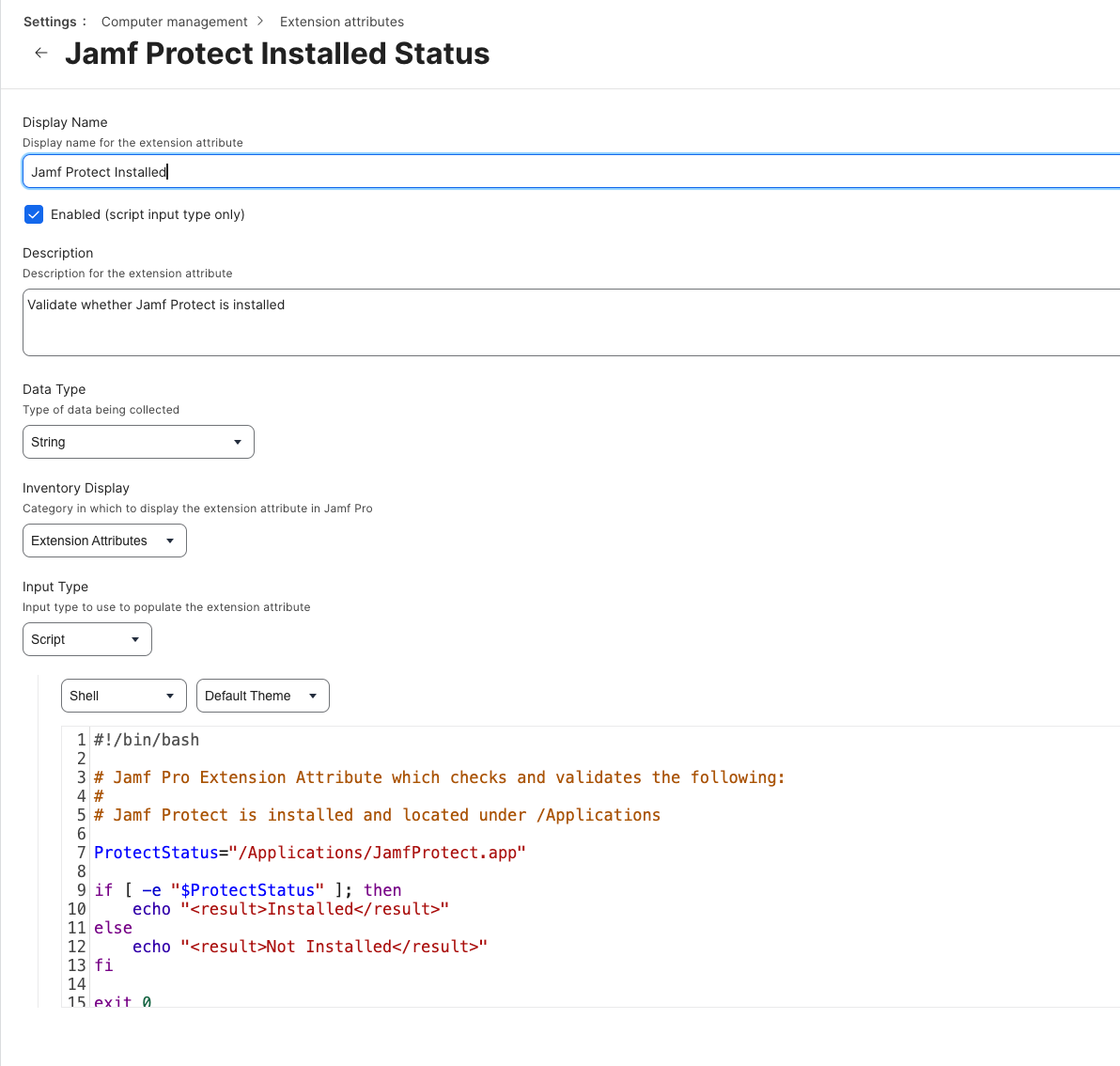
- Then press save
Repeat Steps (1-5), amending Step 4 with the following parameters
Name: Jamf Protect Status
Data Type: String
Inventory Display: Extension Attribute
Input Type: Script
`#!/bin/bash
Jamf Pro Extension Attribute which checks and validates the following:
Ensure Jamf Protect is active and running by checking for Jamf Protect process
JPProcess=$( pgrep JamfProtect ) if [[ -n "$JPProcess" ]]; then echo "Active" else echo "Not Active" fi
exit 0` 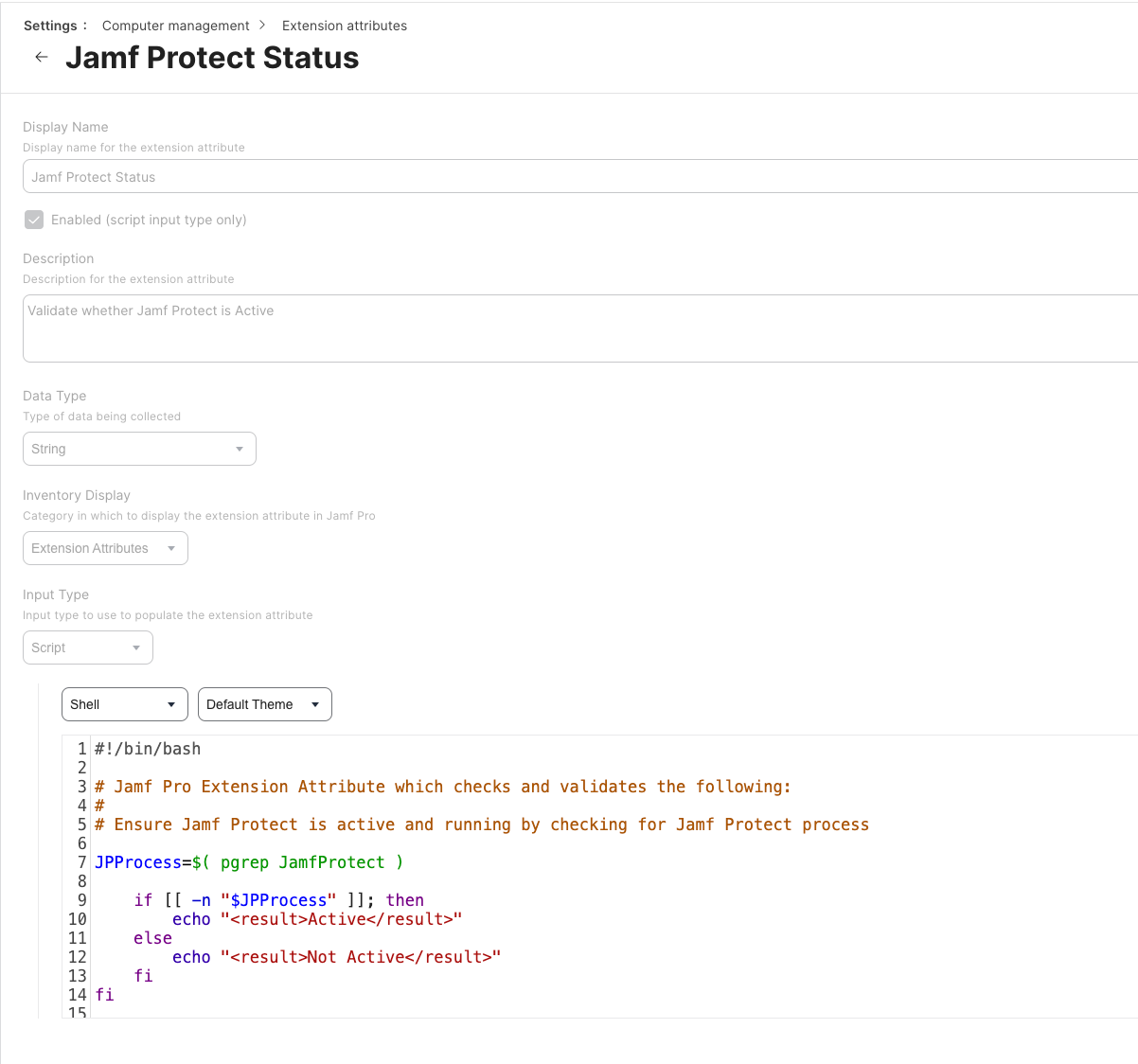
- Then press save
Related articles