About Okta Platform Single Sign-on for macOS
Introduced in macOS 26, Simplified Setup is a new method to require Platform SSO (PSSO) registration during Automated Device Enrollment at Setup Assistant, which can also create the first local user account on macOS with just-in-time account creation.
With this feature, users must register with their identity provider before proceeding with device setup. The first user account is then created and governed by the user's organizational identity provider (IdP).
Useful for:
1:1 computer deployments
Enabling user-level MDM management for the identity-based user from Setup Assistant
Zero-touch provisioning and compliance enforcement
Instructions
Create and configure the platform single sign-on app in Okta
Sign in to your Okta org as a super admin.
Go to Applications > Applications > Catalog and Browse App Catalog. Search for
Platform Single Sign-on for macOS.Click Add Integration.
Note: this application will only be available for customers with Okta Device Access (ODA) licensing.
- Open Platform Single Sign-on from your Applications list.
On the General tab, you can edit the app label or use the default label.
On the Sign on tab, make note of the Client ID. This is needed for the managed app configuration for Okta Verify in your MDM deployment.
To use Desktop Password Sync, users must have the Platform Single Sign-on app assigned. Assign the app to individual users or groups on the Assignments tab.
In Directory > Profile Editor in the Okta tenant, find the Platform Single Sign-On for macOS User.
Add two new attributes:
macOSAccountFullName
macOSAccountUsername
There should now be two custom attributes for the PSSO app to use.
Back in the Platform Single Sign-On for macOS application in Okta, go to the Authentication tab and click the Configure profile mapping link.
Select the Okta User to Platform Single Sign-On for macOS tab. The new custom attributes should be visible there.
Configure the settings for whatever works best for your organization.
Use the Preview button at the bottom to confirm that the attributes pull in as expected.
Click Save Mappings.
Add Okta as a CA with dynamic SCEP challenge for macOS
In the Okta admin portal navigate to Security > Device Integrations. Select Device Access, then Add SCEP Configuration.
Select Dynamic SCEP URL, then Generate.
Note the SCEP URL, Challenge URL, Username, and Password. Those will be needed to make the deployable configuration in Jamf Pro.
Click Save.
Creating the Platform SSO profile for deployment in Jamf Pro
Navigate to Computers > Configuration Profiles and create a new profile for deployment.
Set a Name, Description, and Category. Deploy at the Computer Level, and set distribution to Install automatically.
Find the Associated Domains payload and select Add. Add two App Identifiers:
App Identifier: B7F62B65BN.com.okta.mobile.auth-service-extension Associated Domain: authsrv:<org-tenant>.okta.com
App Identifier:
B7F62B65BN.com.okta.mobileAssociated Domain:authsrv:<org-tenant>.okta.comNext, find the Single Sign-On Extensions payload and click Add.
Payload type: SSO
Extension Identifier:
com.okta.mobile.auth-service-extensionTeam Identifier:
B7F62B65BNSign-on Type:
RedirectURLs (use the Add button to generate a second field for entry)
https://<org-tenant>.okta.com/device-access/api/v1/nonce
https://<org-tenant>.okta.com/oauth2/v1/tokenContinue configuration in the Setting area of the Single Sign-On Extension payload:
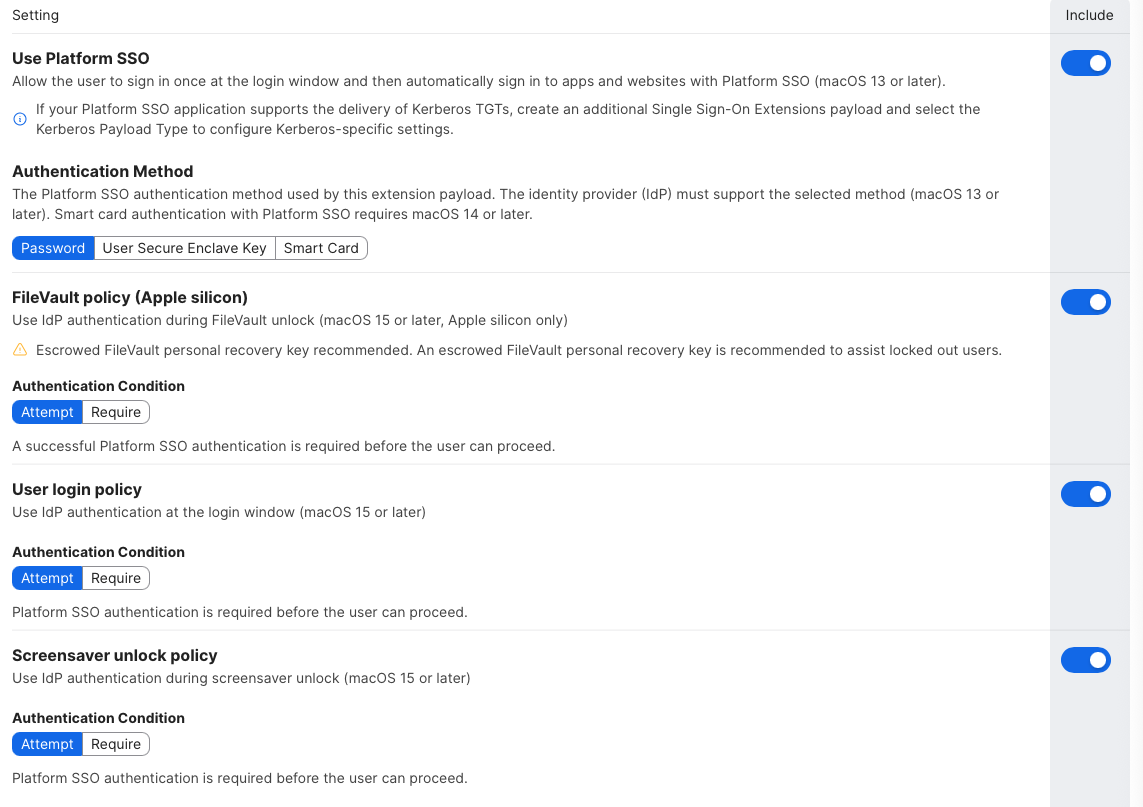
Use Platform SSO: Include
Authentication method: Password
FileVault Policy (Apple silicon):
Attempt&IncludeUser login policy:
Attempt&IncludeScreensaver unlock policy:
Attempt&IncludeEnable registration during setup:
Enable&IncludeCreate first user during Setup:
Enable&Include
New user creation authentication method: Password & Include
Use Shared Device Keys:
Enable&IncludeAccount Display Name: Include (e.g.,
Company IT)Add three payloads under Application & Custom Settings > Upload.
com.okta.mobile.auth-service-extension
Property list example:
<?xml version="1.0" encoding="UTF-8"?>
<!DOCTYPE plist PUBLIC "-//Apple//DTD PLIST 1.0//EN" "http://www.apple.com/DTDs/PropertyList-1.0.dtd">
<plist version="1.0">
<dict>
<key>OktaVerify.EnrollmentOptions</key>
<string>SilentEnrollmentEnabled</string>
<key>OktaVerify.OrgUrl</key>
<string>https://org-tenant-url.okta.com</string>
<key>OktaVerify.UserPrincipalName</key>
<string>$USERNAME</string>
<key>OktaVerify.PasswordSyncClientID</key>
<string>replace-with-PSSO-app-client-id</string>
<key>PlatformSSO.ProtocolVersion</key>
<string>2.0</string>
</dict>
</plist>
com.okta.mobile
Property list example:
<?xml version="1.0" encoding="UTF-8"?>
<!DOCTYPE plist PUBLIC "-//Apple//DTD PLIST 1.0//EN" "http://www.apple.com/DTDs/PropertyList-1.0.dtd">
<plist version="1.0">
<dict>
<key>OktaVerify.EnrollmentOptions</key>
<string>SilentEnrollmentEnabled</string>
<key>OktaVerify.OrgUrl</key>
<string>https://org-tenant-url.okta.com</string>
<key>OktaVerify.UserPrincipalName</key>
<string>$USERNAME</string>
</dict>
</plist>
com.apple.preference.security
Property list example:
<?xml version="1.0" encoding="UTF-8"?>
<!DOCTYPE plist PUBLIC "-//Apple//DTD PLIST 1.0//EN" "http://www.apple.com/DTDs/PropertyList-1.0.dtd">
<plist version="1.0">
<dict>
<key>dontAllowPasswordResetUI</key>
<true/>
</dict>
</plist>
Add your desired Scope for deployment.
Click Save.
Create the SCEP configuration in Jamf Pro
Navigate to Computers > Configuration Profiles and create a new profile for deployment.
Set a Name, Description, and Category. Deploy at the Computer Level, and set distribution to Install automatically.
Go to the SCEP payload and Configure.
Configure as follows:
URL: the SCEP URL provided while configuring the dynamic SCEP challenge in the Okta tenant
Name: enter a name (e.g.,
CA-OKTA)Redistribute Profile: set a value based on organizational preference (e.g.,
14days)Subject: add a subject name template
Example subject name:
CN=$SERIALNUMBER ODA $PROFILE_IDENTIFIERChallenge Type:
Dynamic-Microsoft CAKey size:
2048Check
Use as digital signature.Uncheck
Allow export from keychain.Check
Allow all apps access.Click Save.
Create a PreStage Enrollment for Platform SSO in Jamf Pro
In Jamf Pro navigate to Computers > PreStage Enrollments.
Create a new PreStage Enrollment. Set organizationally-preferred options in the General section.
Under Enrollment Requirements check the Enable Simplified Setup for Platform Single Sign-on (macOS 26 or later) option.
Change the Minimum required macOS version to
26.0.Set the Platform Single Sign-on App Bundle ID to
com.okta.mobile.Under Configuration Profiles ensure that the PSSO profile and SCEP profile are included.
In Enrollment Packages include an Okta Verify installer (version 9.52 or later).
Click Save.
Troubleshooting + Tips
Check PSSO status of logged-in user account
To review the PSSO status of a logged-in user account run app-sso platform -s in Terminal.app.
Unable to Sign-In during Automated Device Enrollment
If you encounter the following error message during enrollment:
The single sign-on extension could not validate the domain. Contact your administrator to help get single sign-on set up.
This message often indicates that the Associated Domains payload is not being recognized during device access registration with Okta.
Resources
🔗 Platform Single Sign-on for macOS (Apple)
🔗 Configure Desktop Password Sync for macOS 15 (Okta)
🔗 Desktop Password Sync for macOS (Okta)
🔗 Device Access certificates (Okta)
🔗 Use Okta as a CA for Device Access (Okta)
🔗 Just-In-Time Local Account Creation for macOS (Okta)
🔗 Add custom attributes to apps, directories, and identity providers (Okta)
🔗 Map Okta attributes to app attributes in the Profile Editor (Okta)