Fully managed devices, also known as "full management for work-only company-owned devices", allows an organization to view and manage all aspects of the device including data, app and policies. There is no separation of personal or work profiles instead the entire device will consist of a single work profile.
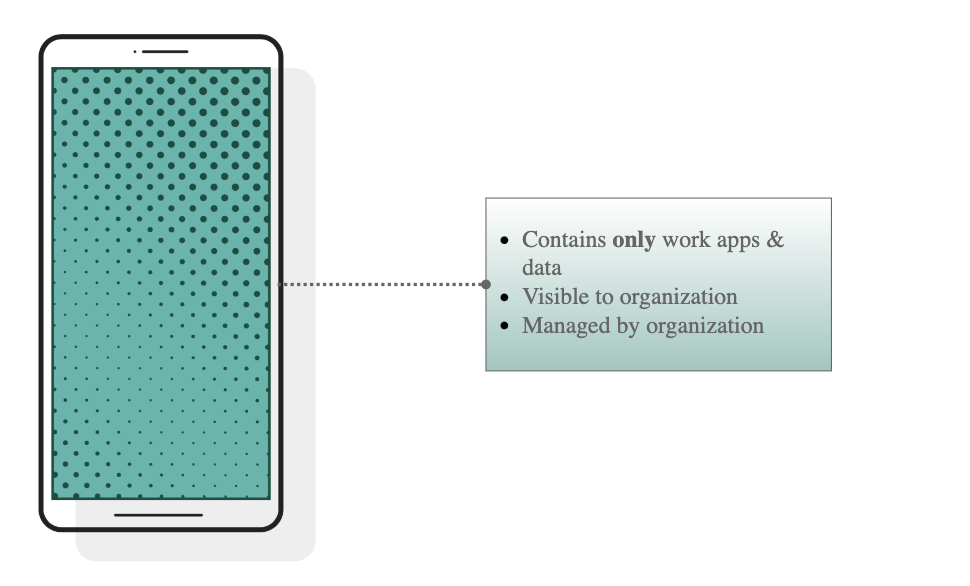
Deploying Fully Managed Android Devices
Like iOS and iPadOS Corporate Owned devices, Google provides a Zero-touch Enrollment capability to enroll a company-purchased Android device into MDM right out of the box.
{{snippet.Manager for Android Config}}
Using a Third Party Android UEM
While documentation for Fully Owned Devices is out of the scope of this document, you can refer to documentation for Microsoft Endpoint Manager as a starting point:
Deploying Jamf Trust
The Jamf Trust app is required to enable various security services on Android devices, including Jamf Private Access.
Info: Note for Android for Manager Deployments
Most of these steps are automatically completed when following the steps above in Deploying Using Manager for Android.
However, it is useful to review the concepts below as they apply to Manager for Android deployments as well.
Jamf Connect ZTNA is used in the Jamf Trusted Access solution to enable access for trusted devices to company resources while providing active mobile threat defense capabilites. The following steps outline the high-level steps required to streamline deployment of the Jamf Trust app via your Android Enterprise-compatible MDM:
- Follow the steps in Enabling Access for Trusted Devices to configure Private Access in RADAR.
- Configure the Jamf Trust app via Managed Google Play, specifying the Activation Profile defined above in the app config.
Info: Per-App VPN on Corporate Liable Devices
While you may use Per-App VPN on corporate managed devices, we recommend using the default device-wide VPN configuration for fully-managed Android devices.
- Define a new Android configuration profile in your MDM that Enables Zero Touch Activation of Jamf Trust and assign this profile to your target devices.
- Only threat defense capabilities with be enabled via zero touch. The user will need to open the Jamf Trust app and authenticate with their identity provider credentials to activate Private Access.